
When the Ladbrokes app stops opening, freezes during a match or refuses to load on a Samsung phone, it can be frustrating—especially when you are trying to check a live market or manage your account. Many problems have straightforward causes, such as an outdated app, a weak connection or a temporary service interruption. This guide walks through practical checks for UK players, starting with the quickest fixes and moving on to more involved steps.
Use only the official Ladbrokes app and support channels. Avoid unofficial downloads or websites claiming to “repair” an account: they can expose personal and payment details. If you are considering a deposit once access is restored, check the payment methods and terms shown in your own account. Ladbrokes payment options for live casino may vary according to account status, location, verification checks and current availability.
Start with the quick checks
Before changing phone settings, establish whether the issue is limited to the app. Open a trusted website or another app that needs an internet connection. If those also fail, switch between Wi-Fi and mobile data, or restart your router. If only Ladbrokes is affected, try closing and reopening it, then restart the Samsung device.
- Force close the app: Open the recent-apps screen and swipe Ladbrokes away, or use Settings > Apps > Ladbrokes > Force stop. Menu names may differ slightly by Samsung model and One UI version.
- Check the connection: Disable and re-enable Wi-Fi or mobile data. If you use a VPN, private DNS or network-filtering service, turn it off temporarily and test again.
- Check service status: Look for an official Ladbrokes service notice or contact support. A server-side outage cannot be fixed by reinstalling the app.
- Set date and time automatically: Incorrect device time can disrupt secure connections. On Samsung, look under Settings > General management > Date and time.
Update the app and Samsung software
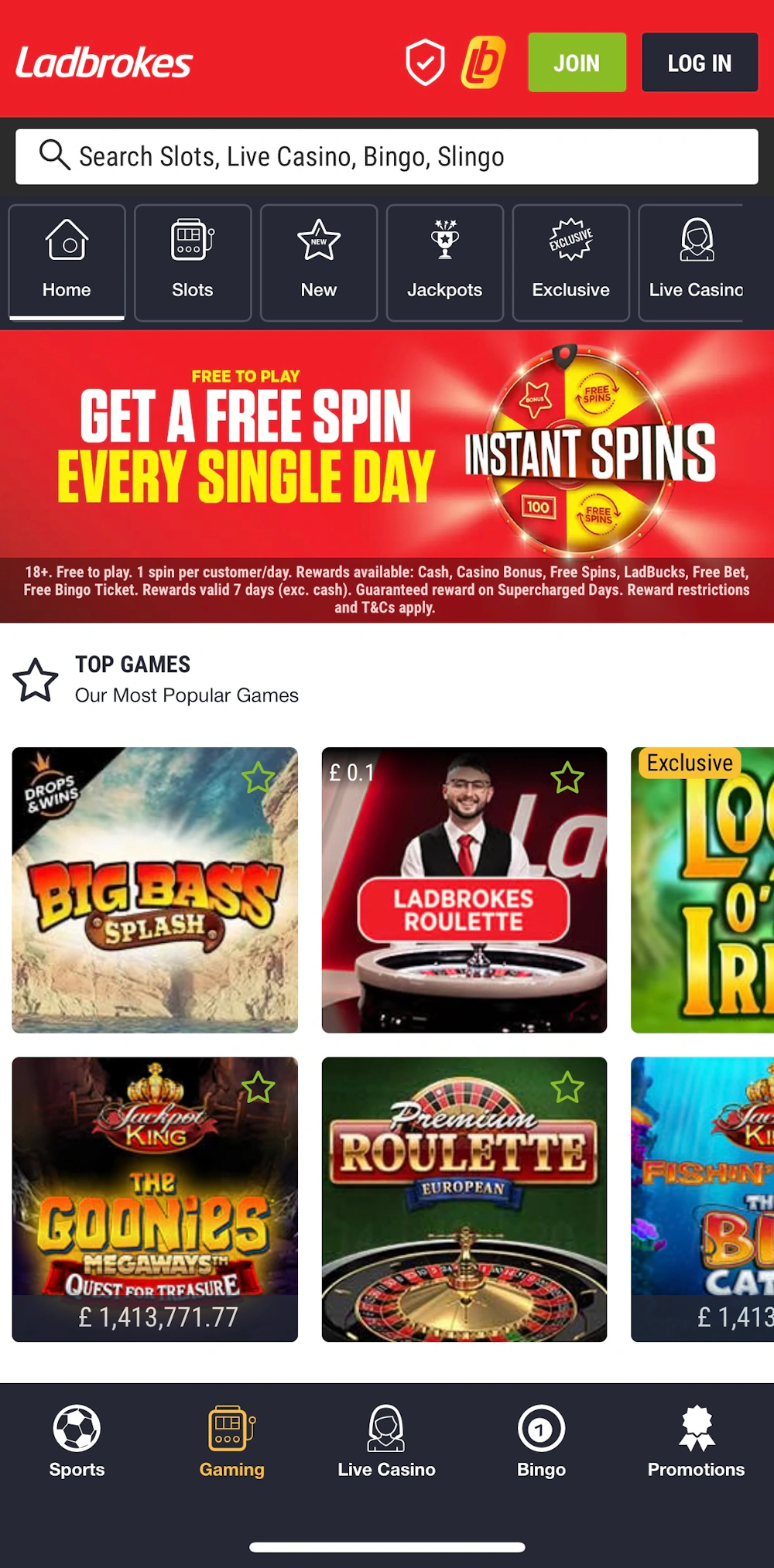
An old app version may no longer work reliably with current services or Android security components. Open Google Play Store, search for Ladbrokes and install an update if one is available. Use the Play Store listing rather than an advert, third-party download page or message link. If the app is not listed, check Ladbrokes’ official UK website for current guidance before taking any action.
Also check for Android and Google Play system updates. On many Samsung phones, Android updates are under Settings > Software update > Download and install. Install updates over a stable connection and with sufficient battery. Then restart the phone and try the app again.
Clear the app cache on a Samsung phone
Temporary files can become corrupted and cause slow loading, crashes or repeated sign-in screens. Clearing the cache is usually a low-risk step: it removes temporary data, not your account or saved credentials. The exact wording can vary, but the usual path is:
- Open Settings and tap Apps.
- Select Ladbrokes. If it is not visible, use the search icon in the Apps list.
- Tap Storage, then choose Clear cache.
- Return to the app and test it. If necessary, restart the phone first.
Do not choose Clear data unless you understand the effect. It may sign you out and remove locally stored app settings. Your account should remain online, but you will need to log in again, and you may be asked to complete security checks. Make sure you know your login details and can access your registered email or phone before using that option.
If the app still will not open
Check storage and background restrictions
Very low free storage can prevent apps from updating or operating normally. Check Settings > Battery and device care > Storage, then remove files or apps you no longer need. Avoid deleting unfamiliar system files. Samsung’s battery controls can also restrict background activity; if the app loads only after repeated attempts, review its battery settings and ensure it is not being put into deep sleep.
Reinstall from an official source
If the app crashes immediately or remains stuck after an update and cache clear, reinstalling may help. First confirm you can sign back in and that you have access to any verification method on your account. Uninstall Ladbrokes, restart the phone, then install it again from Google Play or follow the current instructions on Ladbrokes’ official UK site. Never share your password or one-time passcodes with someone offering to install or troubleshoot the app for you.
Look for device-specific conflicts
Some security, accessibility, overlay or ad-blocking tools can interfere with sign-in screens or payment pages. If the problem began after installing or updating another app, temporarily disable that tool and test Ladbrokes again. Do not turn off core Android or Samsung security protections. If the app displays a specific error, record its wording and when it appears; this helps support distinguish a connection issue from a login, compatibility or account problem.
Common problems and sensible next steps
| What you see | What to try |
|---|---|
| App closes as soon as it opens | Update the app, restart the phone, clear the cache and check Android updates. |
| Loading wheel does not stop | Test another network, disable VPN or filtering temporarily, and check for a service notice. |
| Repeated login or verification prompt | Confirm the date and time are automatic, then use the official password recovery or account verification process. |
| Deposit page fails to load | Do not repeat a payment if its status is unclear. Check your account transaction history and contact official support before trying again. |
| App says the device or version is unsupported | Check the current official requirements and install available system updates. Ask Ladbrokes support whether your model and Android version are supported. |
Questions UK players often ask
Is the Ladbrokes app down, or is it my Samsung phone?
Try the official website using the same connection, then switch from Wi-Fi to mobile data. If neither the app nor website works across more than one device or network, a service issue is possible. If the website works but the app does not, focus on app updates, cache, permissions and device compatibility. Support can confirm whether there is a known outage.
Will clearing the cache delete my balance or bets?
Clearing the cache removes temporary files stored on your phone; it does not normally delete account records held by Ladbrokes. However, always verify balances, open bets and transaction details by signing in through an official channel. If a bet or payment appears uncertain, do not place it again until the account history or support confirms its status.
Can I use the website while the app is broken?
If the official Ladbrokes website is accessible and your account permits it, you may be able to sign in through a browser. Type the address yourself or use a trusted bookmark, and check that the page is the genuine site before entering credentials. Never follow unsolicited links claiming to restore access.
What information should I give support?
Provide your Samsung model, Android or One UI version, app version, the approximate time the issue began, the error message and the steps you have already tried. You can find model and software details in Settings > About phone and Settings > Software information. Do not send your password, full card details or one-time security codes.
Protect your account while troubleshooting
Only install app updates from a recognised official source, and avoid sharing your screen with strangers who contact you unexpectedly. Ladbrokes support should not need your password or a security code to diagnose an app crash. If you suspect that your login has been exposed, use the official account-security process, change your password and contact support through verified channels.
UK gambling accounts are intended for people who meet the legal age requirement, and access can be subject to identity and location checks. Troubleshooting should not be used to bypass those checks, account restrictions or safer-gambling controls. If you are taking a break or have set a limit, keep those protections in place rather than trying to work around them.
When to contact Ladbrokes
Contact official support if the app remains unusable after updating, restarting and clearing its cache; if you cannot complete account verification; or if a deposit or withdrawal has an unclear status. Give a concise description and the troubleshooting steps you completed. Support may ask you to provide device details or follow additional checks, but use only contact options reached from the official Ladbrokes website or app listing.
For most Samsung users, the best order is simple: check the network and service status, force close the app, update it, restart the phone, clear the cache, and reinstall only if needed. This approach avoids unnecessary account changes and helps identify whether the fault lies with the device, connection or service. If the issue persists, an error message and accurate device information will make official support more effective.
Recent Comments